How to request a Booking Deposit in Fusion:
Deposit requests can only be triggered manually by you or your team from the appointment book Touch Tip - giving you complete control who receives these requests.
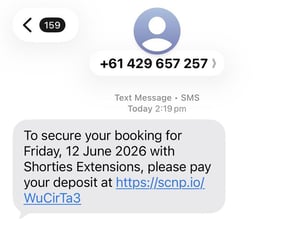
By default, an email will automatically be sent when a deposit is requested. If the client has no email on file an SMS will be sent instead (over 2 billable SMS units). If the deposit has not been collected, automated deposit reminders will also be sent using the same contact methods. To learn how to edit your deposit request and reminder messages, or to change your preferred communication settings, please refer to the instructions linked here.
-
Make the booking as normal in Shortcuts Fusion, the touch tip will automatically load once the appointment has been made.
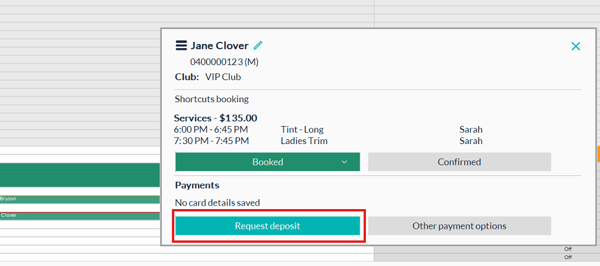
-
Click the Request deposit button.
-
The Touch Tip will then show the request date and deposit value.
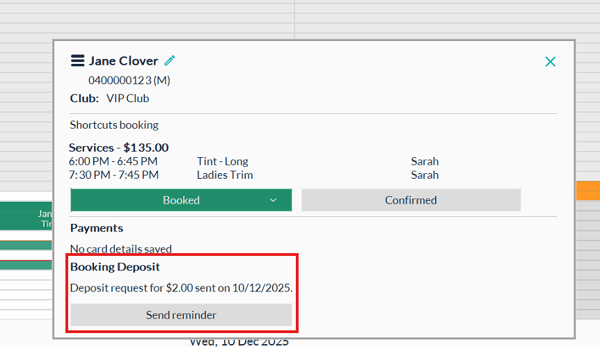
- The Appointment colour will change to half orange indicating that the deposit request is outstanding.
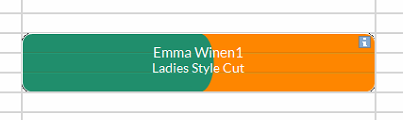
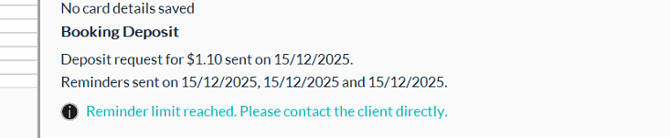
- If the client does not make payment, up to 3 reminders will be automatically sent and it will display as all reminders sent and to contact the client in Touch Tip. (to edit these automated messages follow the steps here)
Example: This is what the Touch Tip looks like when no deposit has been received and 2 reminders have been sent.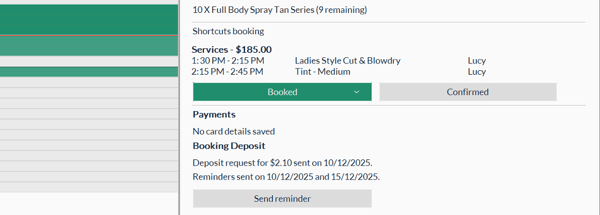
Example: When the client has been sent all 3 reminders and the limit has been reached.
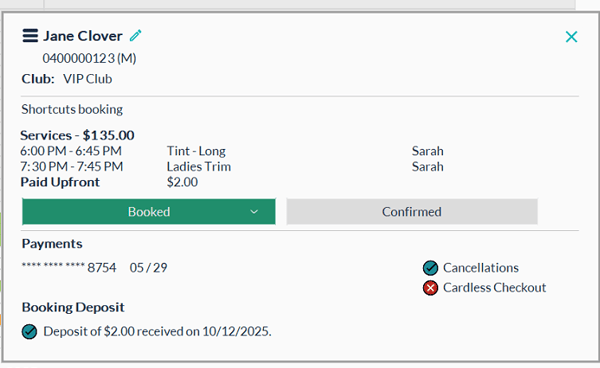
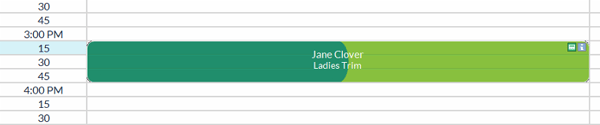
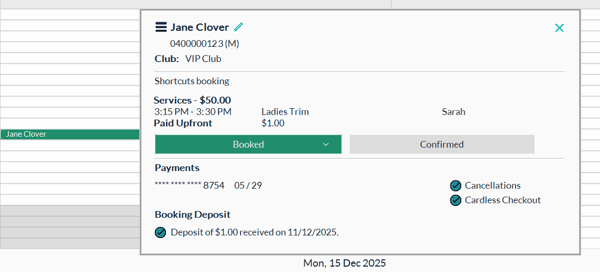
- Once the deposit has been received, the appointment colour will change to half lime green and add a credit card icon to the top right corner of appointment. The Touch Tip will also display how much has been received and the date the deposit was received. It will also show if they have opted in to Cardless and Cancellations (if applicable)
NOTE: The Booking Deposit will stay with the clients appointment if you use the 'reschedule' or 'change booking' options in the menu.
When adding or changing service ahead of time, you cannot request a further deposit if the original deposit has already been received. The original deposit is kept against the new booking.
Making clients exempt from booking deposits:
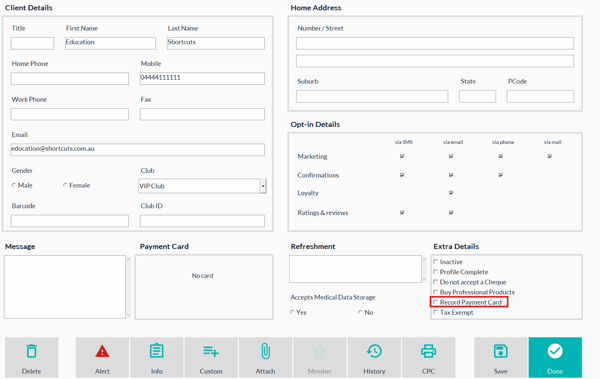
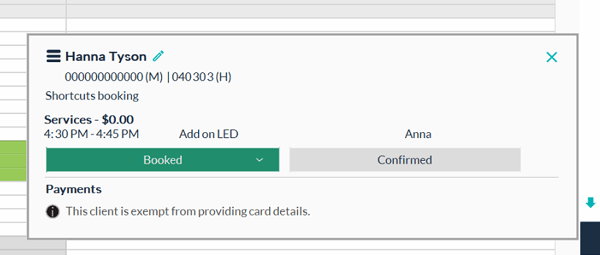
In Fusion, when 'Record Payment Card' option is unticked on the client card, the client will be exempt from providing card details or requesting a deposit. By default this option is ticked to require a deposit.
The Setup:
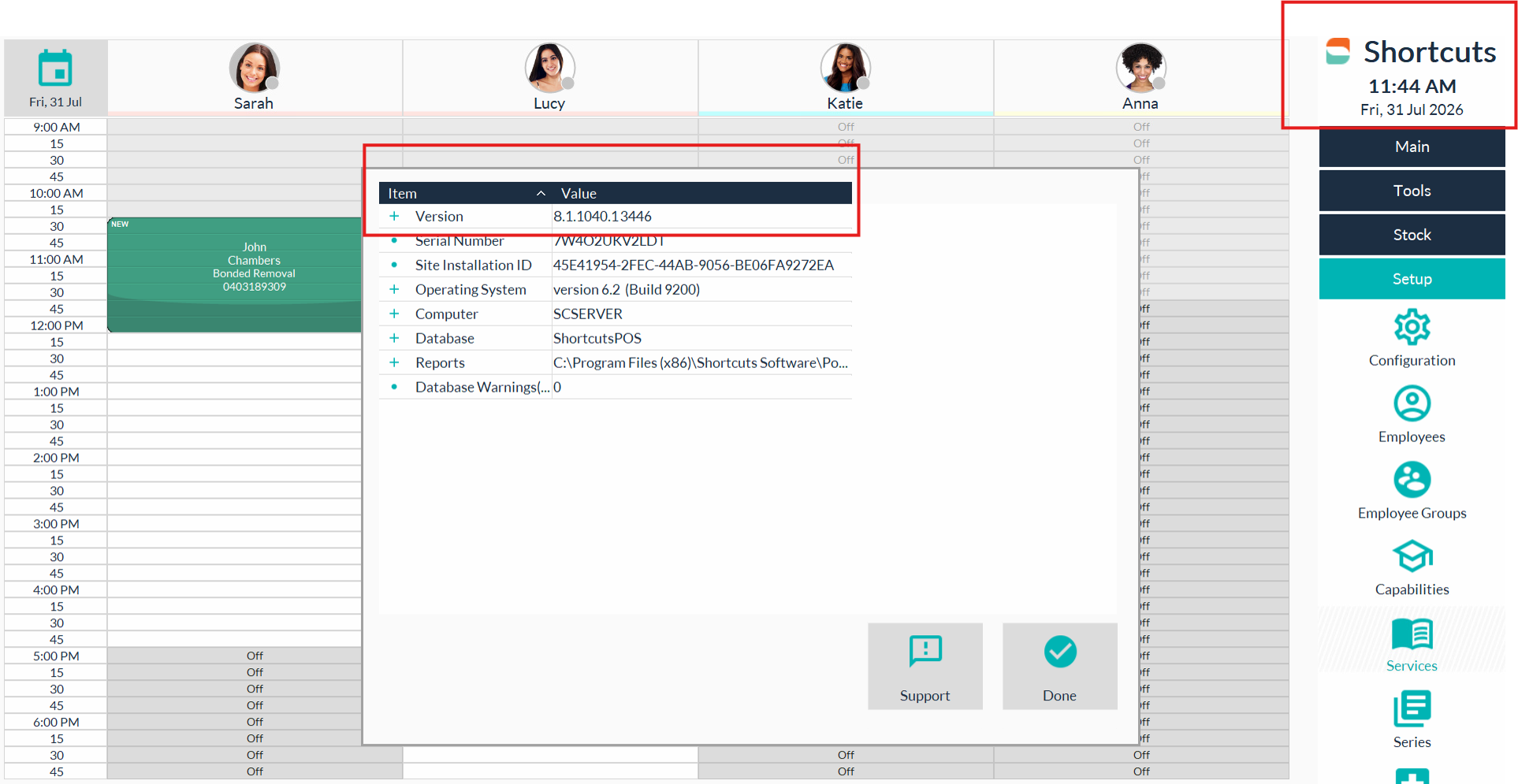
The minimum shortcuts version required 8.1.10.40. to enable this feature.
Double click on the shortcuts icon on the right and the window will appear
Contact our Helpdesk to request an upgrade if required.
The feature will automatically be turned on when your payment provider is connected and online booking deposits are active.
If you would like to edit the rules or setup booking deposits for the first time follow the instructions here.
The Booking Deposit 'email' and 'SMS when not email sent' campaign is automatically active as part of the feature. No action is required if using the default settings. You can however make any changes to the Email and SMS communications, de-activate SMS, enable SMS for all and edit/add further booking deposit rules if required follow the steps here.
Email /SMS Example:
Example of the email.
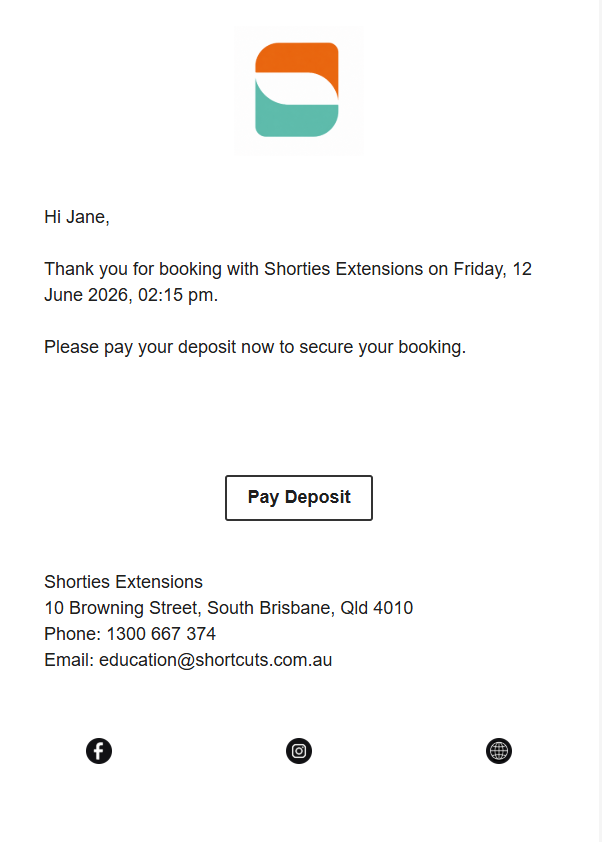
Example: Pay Deposit page
*colours and imaging match online booking themes
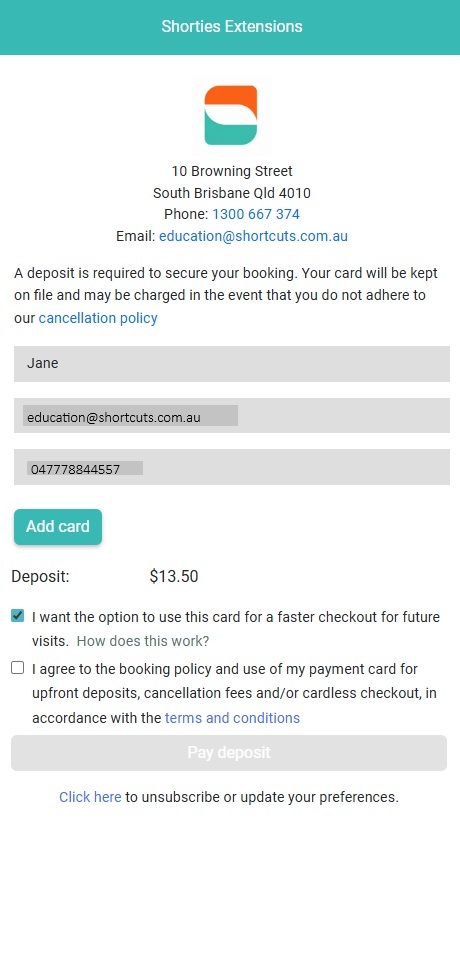
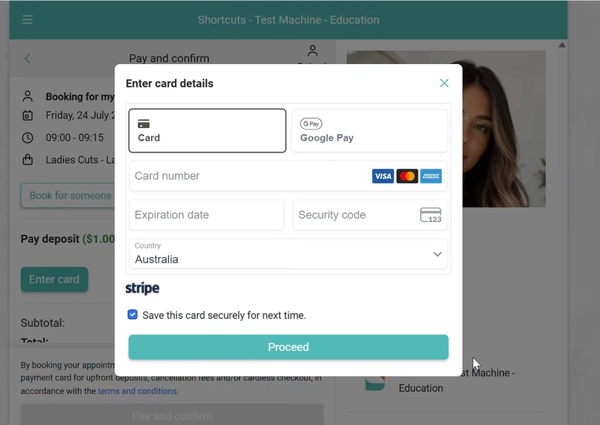
NOTE: The client can choose to save the card on file for next time.
SMS Example
What if I am using Cancellations Card on file or Cardless Checkout Features:
"Other payments" button will show if cardless check out or cancellations is active so you can request other options.
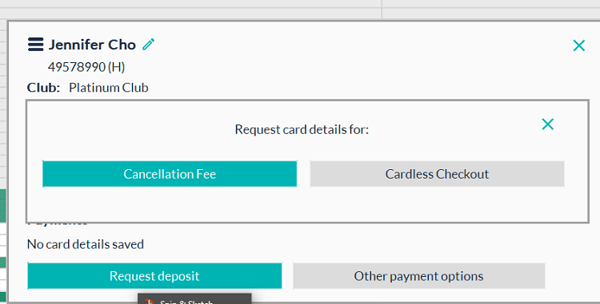
*If a booking request is made the client is automatically asked if they would like to opt in to Cancellations and Cardless.
*If you have only requested a cancellation fee OR Cardless Check out you cannot go back and request a deposit.
The tick and cross against Cardless Checkout and Cancellations on the Touch Tip shows which features the client has opted into. If you do not use either of these features (i.e. they are not turned on, they will not be visible on the Touch Tip).
Below is an example where:- the client has a card on file
- the client has not opted into Cardless Checkout
- the client has opted into Cancellations and
- a deposit has been paid