
Reviewing Booking Deposits
- Look for the green card icon "Review Payment" tab on the appointment.
- Right-click on the appointment to view the details, including the upfront payment amount.
At Checkout
- Right-click on the appointment and select Check Out.
- You’ll see an extra line item Redemption Line that deducts the Booking deposit.
- The outstanding balance will reflect the remaining amount after applying the upfront payment.
- Complete the process:
- Select the additional payment type (if applicable).
- Click End Sale to finalize the checkout.
Steps to Handle Cancellations and No-Shows
Managing Cancellations via the Cancellations Menu on the Appointment book
-
Delete the Appointment:
- Right-click on the appointment and select Delete.
- Enter the reason for cancellation (e.g., client cancelled or no-show).
- The Booking Deposit amount will show at the top of the Reason screen
-
Access the Cancellations Menu:
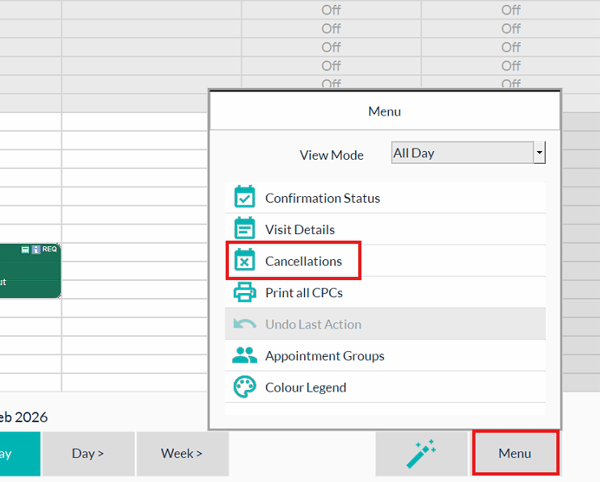
- Click the menu icon at the bottom of the screen and select Cancellations.
- Choose the relevant date range to process the cancellation
Charge the Full Fee:
-
Enter the Fee (pre paid amount or less value)
-
Check the box for the full fee and select Process.
-
Confirm the action to complete the transaction.
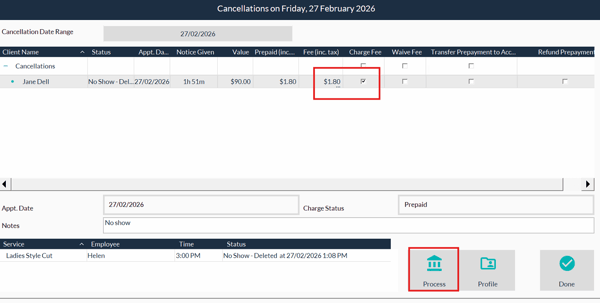
Transfer to Account:
- Enter the Fee amount
-
Select the transfer option and process it to move the amount to the client’s account.
Charge a Partial Fee:
-
Enter the desired amount to charge this must be less then the original deposit value, process the transaction, and transfer the remaining balance to the client’s account.
Waive Fee:
- Enter the Fee amount
-
Select the Waive Fee and process this will create an unlinked Booking Deposit.
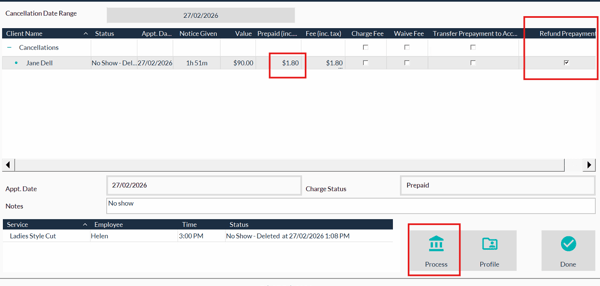
Refund Prepayment
- Enter the amount , Select the Refund Prepayment option and process - this will prompt you to go to point- of- sale
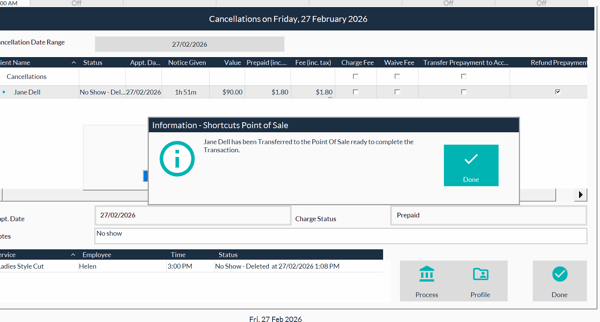
- Go to point of sale
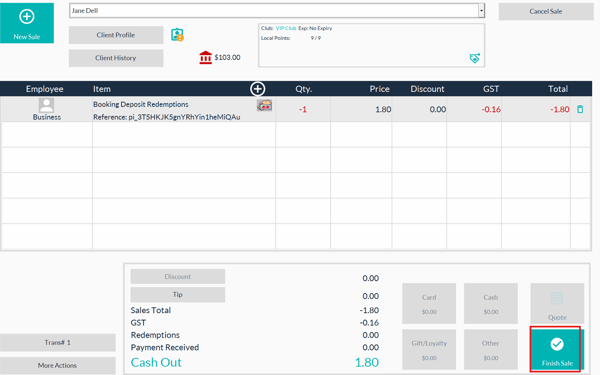
- Select finish sale, and choose the card on file
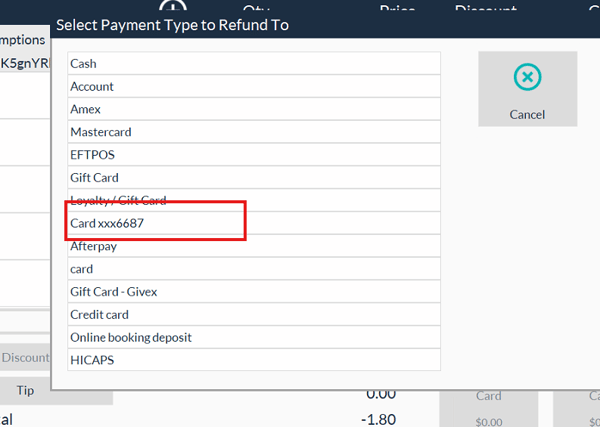
- Choose the reason for the refund.
Checking Booking Deposits in Client History
- Go to the client’s profile and select Client History.
- The upfront payment amount and booking details will be displayed here for easy reference.
How to refund a Booking Deposit - Using the History Screen
- Select the Client from the Clients Search Screen
- Go to the History of the client
- Right click on the Booking Pre payment and choose Refund
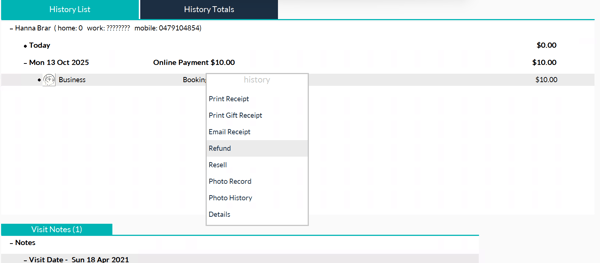
- Then go to the point of sale screen
- Select finish sale
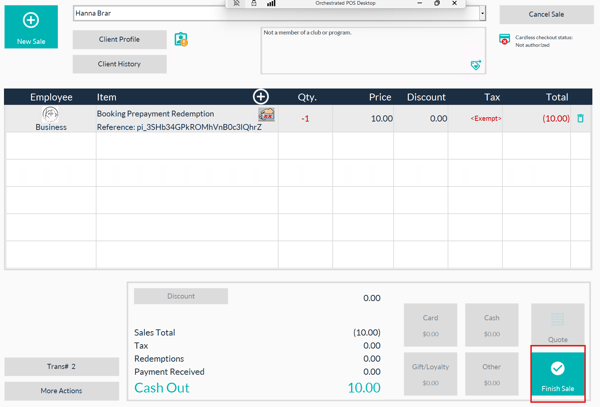
6. Select the card on File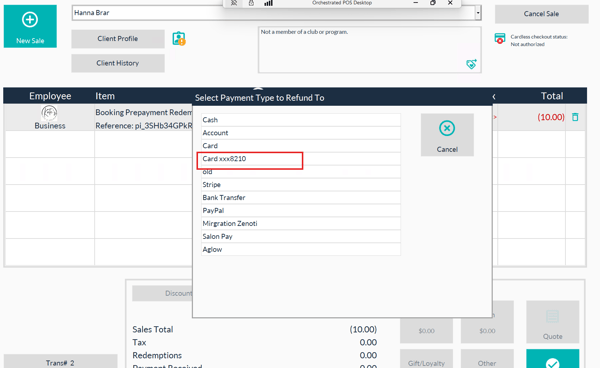
7.Choose the reason and complete the sale.