
Booking deposits can be taken in three areas of the software: Online Booking (including the Shortcuts App), Shortcuts, and the Cloud. The same booking deposit rules apply across all three areas. Booking deposit rules determine the amount a client must pay when booking a specific service. You can create multiple rules to suit different service types. For example, you can require a larger deposit for time-consuming services, a smaller deposit for shorter services, or no deposit for services where a deposit is not required.
To set up deposit rules:
-
Log into the Console
-
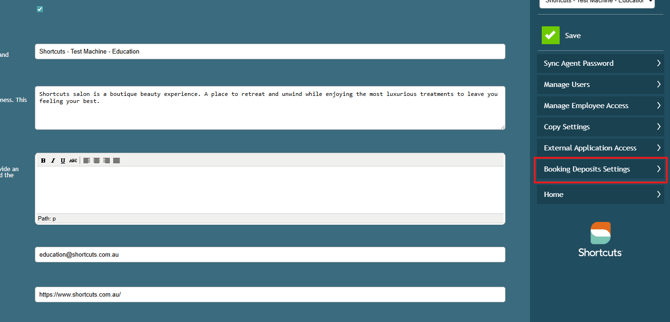
Navigate to the Online Booking Settings.
- Select Booking Deposits Settings
- Select the relevant location (if you have more than one)
- Select Add New Rule
- Specify how you want your deposit to work by entering all the rule paramaters
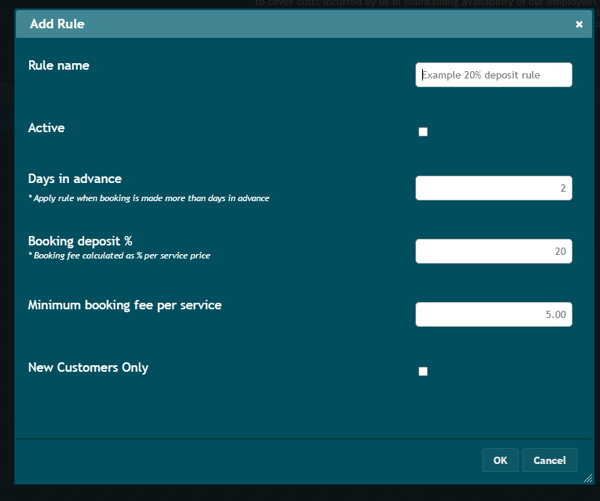
- Rule name: ensure the name of the rule indicates what the rule does. This will make it easier for you when you come back and check your rules later. Example as 50% for Hair Extensions, or 30% for General Services. These names are not public facing.
- Days in advance: Select a timeframe for rule application (e.g. you may only want to charge a deposit if a service is booked a long time in advance ). If you would like to always take deposits regardless of how far in advance the service is booked, enter a zero (this is recommended).
- Deposit amounts to be collected: Percentage & Minimum Booking Fee Per Service:
You can choose to charge either a Percentage or a Minimum Booking Fee Per Service, or both.
-
- If you only want to charge a Percentage: enter the percentage amount here. Then enter zero (0) in the Minimum Booking Fee Per Service field.
- If you only want to charge a Minimum Fee Per Service: enter the minimum amount you would like to collect per service. Then enter a zero (0) in the Percentage field.
- If you want to charge both: This option is useful for businesses that offer a mix of high and low cost services where the standard deposit percentage results in an amount that is too low to discourage no shows. In this case, you can set a Minimum Deposit Fee that is higher than what would be taken as a percentage amount.
Example: A haircut costs $150, while a brow wax costs $15. At a 30% deposit, the brow wax would require only a $5 deposit, which may not be enough to discourage a client from not showing up. In this case, you could set a Minimum Deposit Fee of $10, ensuring that at least $10 is collected when the service is booked.
-
New Client:
-
If you want to collect this deposit amount for both new and existing clients, leave the box empty.
-
If you want to collect this deposit amount for new clients (client visiting your business for the first time), place a check in the box.
-
If you would like to collect different deposit amounts based on if a client is new or existing (for example, a higher deposit amount for new clients), set up two deposit rules; a lower deposit rule without a check in New Clients, and a higher deposit rule with a check in New Clients . The system will automatically charge the higher deposit amount to new clients and the lower to existing clients.
-
-
Activate Rule:
-
Place a check in the Activate Box.
-
-
Save Changes:
-
Click OK to save the rule.
-
If you have multiple locations you can copy your rule settings to other locations. To do this:
-
Copy Settings:
-
Select Copy Settings and choose the source site.
-
-
Choose Applications:
-
Tick applicable applications and gallery images.
-
-
Select Destination Sites:
-
Confirm the target sites and click Copy Settings.
-