
Step 1: Verify Client Synchronisation
Before creating a Google Review SMS campaign, ensure your client database is synchronising to Marketing Plus. See here for more information on client synchronisation.
Step 2: Create a Google Review SMS Campaign
-
Login to Marketing Plus
-
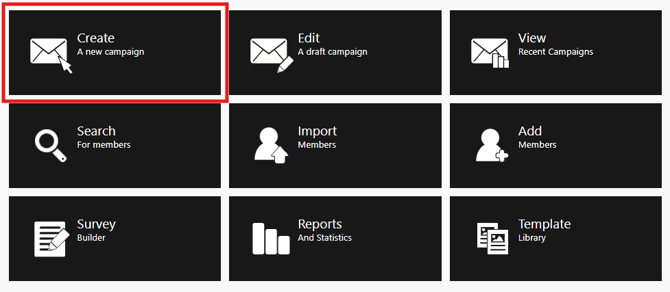
Select Create a New Campaign
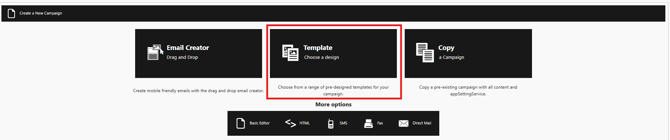
3. Select Template Choose a design
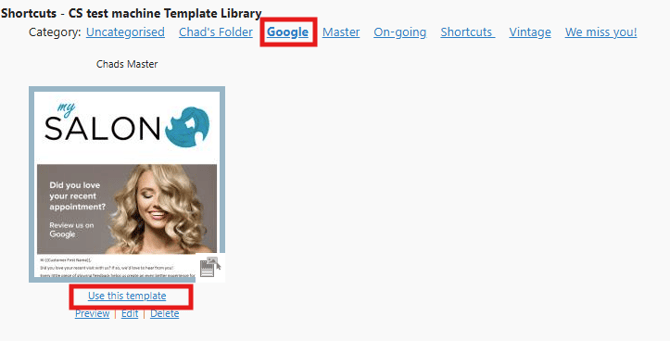
4. Select your Google template
5. Select on Use this template
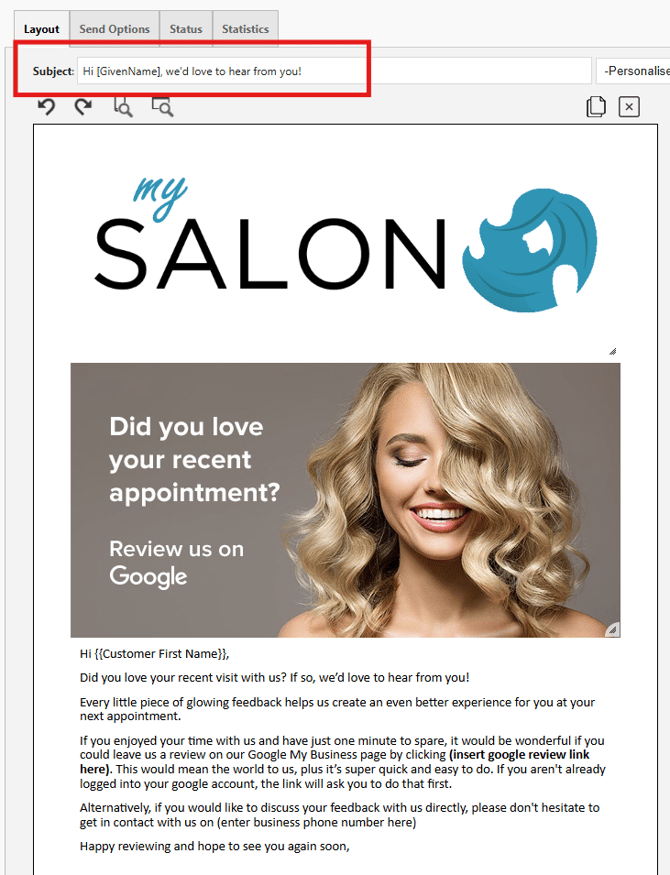
6. Layout > enter subject line > save and continue
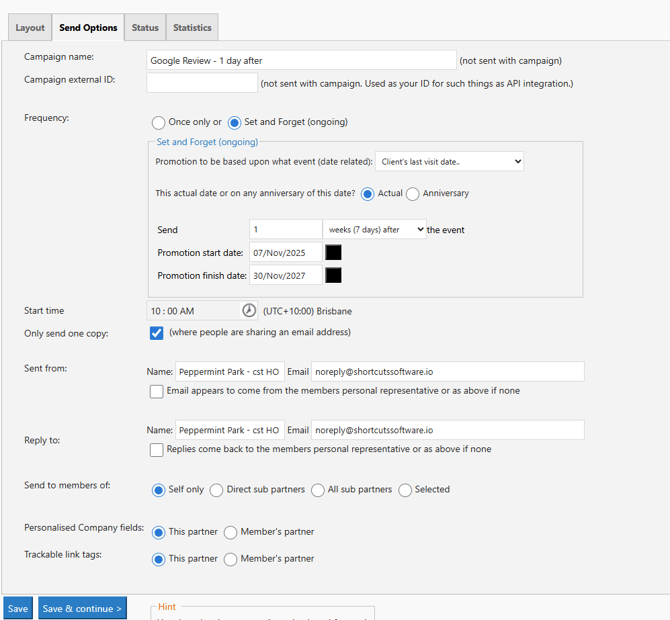
Step 3: Configure the Email Campaign Settings
-
Campaign Name: Google Review - 1 Day After
-
Frequency: Set & Forget
-
Promotion Based On: Clients’ Last Visit Date
-
Event Type: Actual
-
Send: 1 day after the event
-
Enter Start and Finish Date
-
Enter Start Time
-
Select Save and Continue
*Please note that Every Customer, Every visit will receive this email.