
Steps to Connect Shortcuts to Stripe
1.Log into the ConsoleGo to https://console.shortcutssoftware.com/site .
2.Navigate to Site Settings
-
- Click on Site Settings.
- If you manage multiple sites, select the specific site you want to connect.
- Scroll down to Payment provider
3.Click the Connect to Connect to ShortcutsPay Button

4. Review and Accept Terms & Conditions
Read through the Terms & Conditions and click Accept to proceed.5. Create Your new ShortcutsPay Account
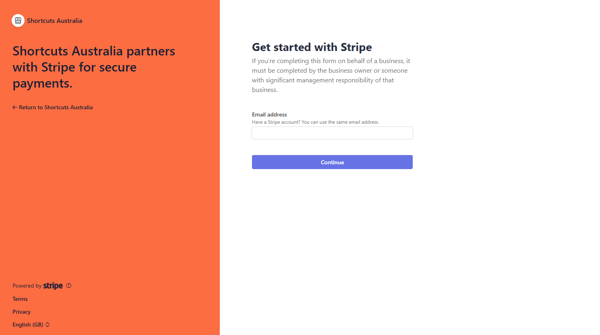
If you already have a Stripe account, you can use the same email address however this will still create a new ShortcutsPay account under your existing Stripe Dashboard.
6.Set up two-step authentication
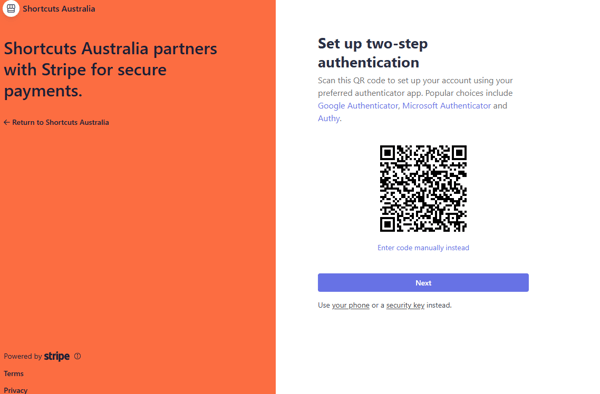
7. Complete setting up the account with all the Business and Bank account information
8.Once the account is created and confirmed you will return to console and you will see your account id
Now you are ready to set up booking deposit rules, set up your terminal or online gift cards.