
Set up - Booking Deposits:
If you do not have an online payment provider or online booking deposits turned on start here
All Booking Deposits settings are turned off and on in console
The minimum shortcuts version required 8.1.10.40. to enable this feature.
Double click on the shortcuts icon on the right and the window will appear
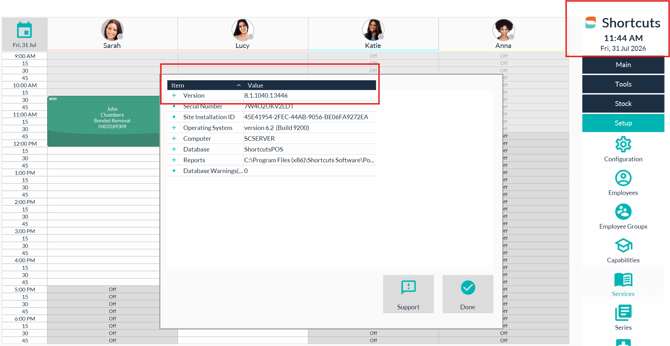
Contact our Helpdesk to request an upgrade if required.
Booking Deposits will automatically be turned on when your payment provider is connected and online booking deposits are active. The Booking Deposit email and sms campaign will automatically be active as part of the feature.
No action is required if using the default settings. You can however make any changes to the communications and booking deposit rules.
How to make changes to the deposit rules?
Go to console > online booking settings or site settings > Booking Deposit Settings
Here you will see when 'Booking deposits active' is selected, online booking deposits will also be active by default. Deactivating the Deposit Feature will turn off all Deposits including Online Booking Deposits. If you choose to turn off Online Booking Deposits only untick the collect deposit durning online booking and save.

Example of what it looks like when you turn on Booking Deposits.
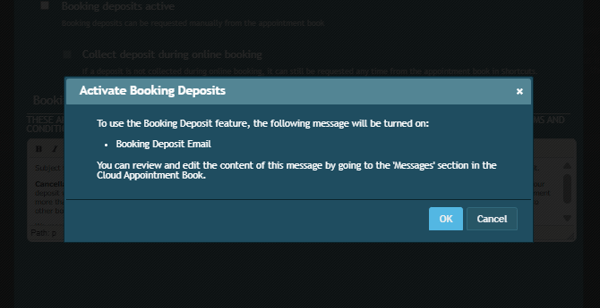
- The rules for both Booking deposits and Online bookings deposits are the same. No action is required for the setup.
- Priority Rules work exactly the same - highest priority is the amount that is taken when the services sits in multiple rules.
- Fusion Services will take on the rule for "any service" even when they are not online bookable.
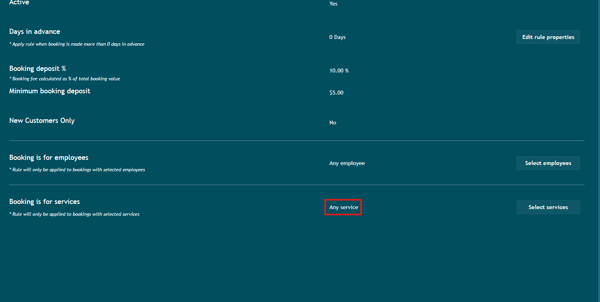
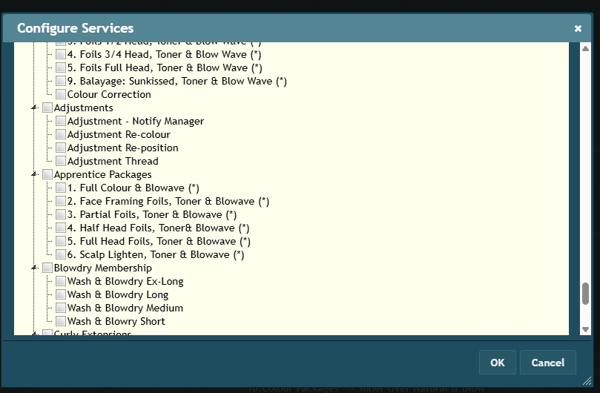
- You can make deposit rules for services you have available in fusion that are not online bookable. Online booking services appear in the list with (*)
Email and SMS Campaign
Click to Make changes to the Email and SMS campaign
Security - Q/A
Q. Who can view and request deposits? Anyone
Q. If a site has the booking deposits /cardless/cancellation feature/s on - the request card buttons will be visible - no security permissions are associated.
Q. If my employee has view only permissions in cloud can they still send a deposit? Yes, they can send the request.
Click here to Learn how to request Fusion Booking Deposits