
You can create Payment link directly on the Dashboard. You'll get a URL or a QR code to share with the customer to collect payment.
Step 2: Click Create payment link.
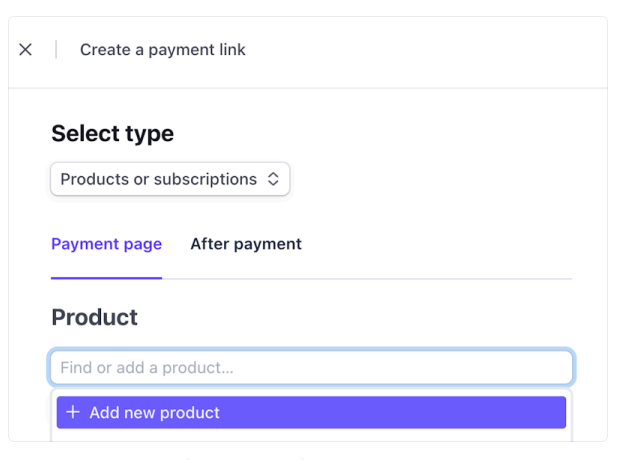
Step 3: Add the product or service, and enter the price you want to charge.
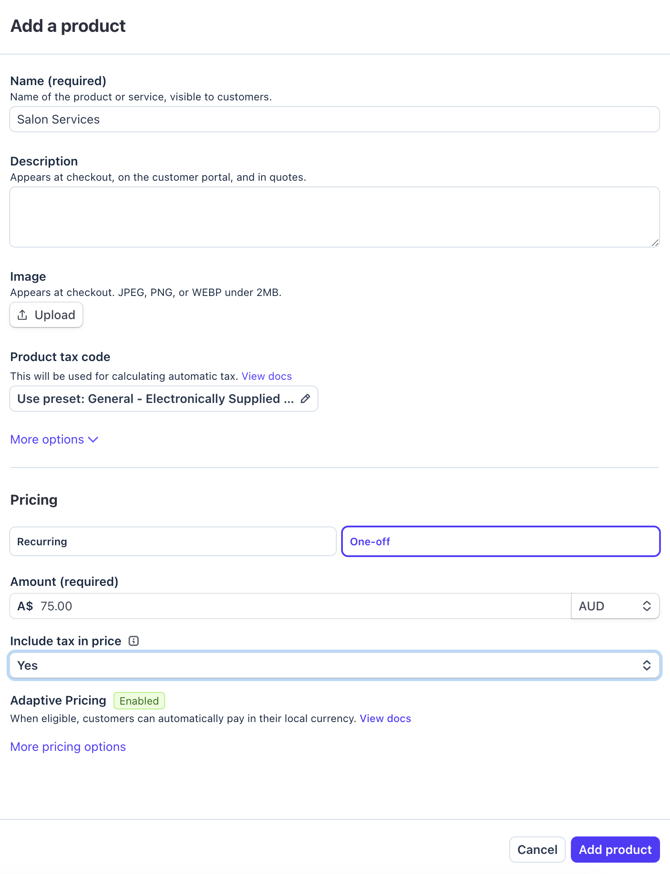
Step 4: Click Add product.
Step 5: Click Create link.
Step 6: Copy the payment link URL or copy/download the QR code. Send the link or QR code to your client via SMS, email, or messaging app.
The client can open the link and complete the payment securely using their card or other supported payment methods.
Once the payment is completed, the transaction will appear in your Stripe Dashboard under Payments.
You will then need to process this amount through Shortcuts Point of Sale using an Offline Payment, payment type.
Click here to set up the payment type in Fusion and process the Sale.