
NOTE!!! Warranty Claims are done via your Stripe Dashboard which only you have access to do. Before logging a warranty claim, we recommend using the inbuilt chatbot on your Stripe dashboard (after you have logged into your account) to see if they can assist getting the issue resolved remotely.
- Log into your Stripe Dashboard: https://dashboard.stripe.com/
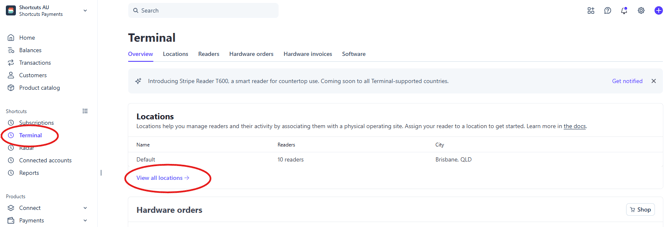
- Select Terminal on the left navigation bar
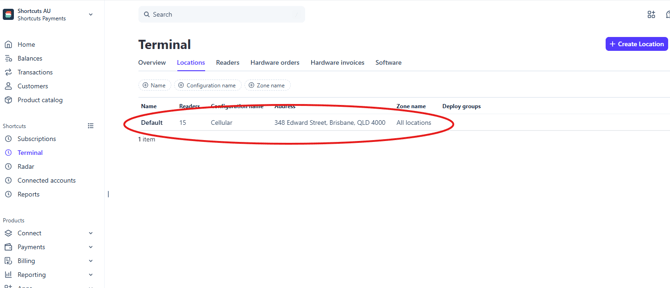
- Under Locations: if you only have one business location it will be there to select. If you have multiple locations under one Stripe account first click on View all locations > then select the location from the list.
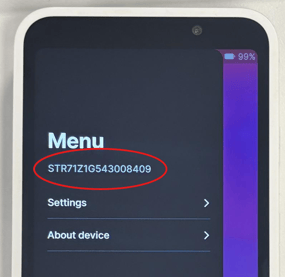
- Select the relevant Terminal. If you have multiple terminals, you can check your terminal's serial number by swiping from the left side of the screen to the right. The serial number will be displayed under the word Menu.
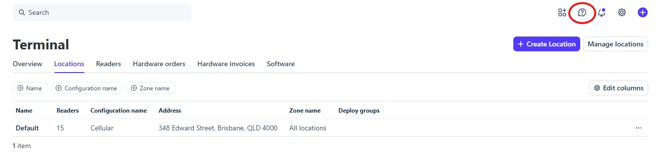
- We recommend that you use the chatbot to describe what your issue is with the terminal. They will help you troubleshoot remotely. If they can't get it workin they will ask you to log a Warranty claim.
To log a Warranty Claim:
- Ensure the relevant terminal is still selected
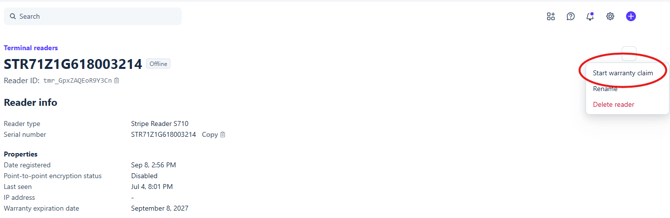
- Click on the 3 dots top right hand side
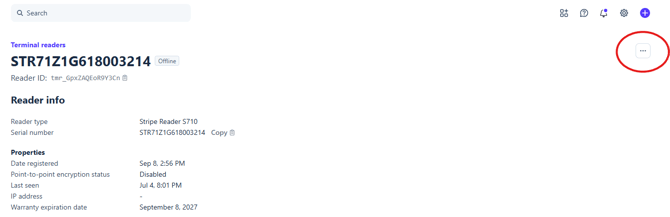
- Select Start Warranty Claim then follow the onscreen instructions.
Page URL: https://help.shortcutssoftware.com/en/shortcutspay