
Step 1: Log into Stripe Dashboard set up the Tipping amount:
- In the Stripe Dashboard, select Terminal (which is located in the Navigation area on the left side of the screen→ Then click Locations.
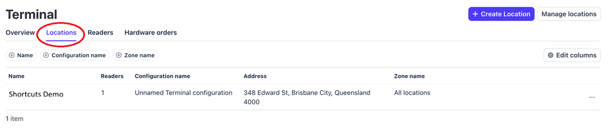
- Select the location where the terminal is located.
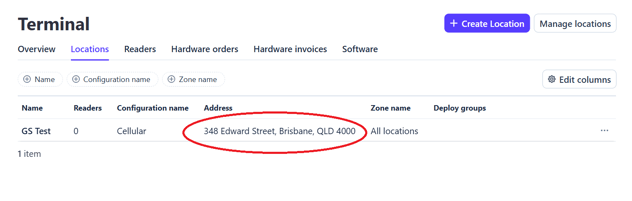
- In the Inherited configurations section, find Tipping and on the Pen icon/ Override.
-
Choose the tipping mode you want to use. Available options include:
- Percentage – Tip options are shown as percentages.
- Fixed amount – Tip options are shown as fixed dollar amounts.
- Smart tips – Tip suggestions adjust based on the transaction amount.


- Configure the tip values you want displayed on the reader.
- Click Review and confirm to save the changes.
Note: Shortcuts can override the default Stripe tipping configuration at a company or site level if required. This is useful for multi-site businesses, as it allows tip settings to be applied centrally instead of configuring each location individually.
Step 2: Setting up Tips in Shortcuts:
-
Select Setup > Configuration> Point of Sale
-
Tick on the Allow Tips tickbox.
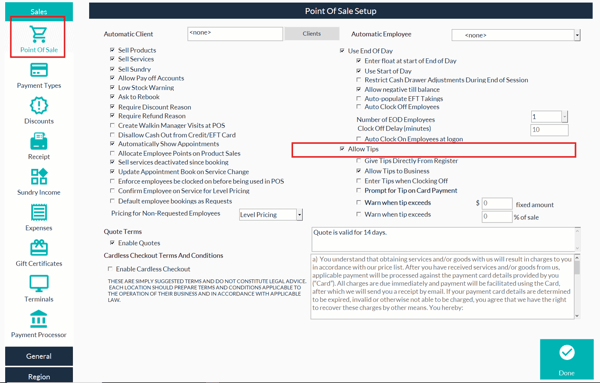
Note:
-
We highly recommend that you allow the client to enter the tip in themselves when you hand them the ShortcutsPay terminal. This will automatically adjust the amount due and send it back to Shortcuts.
-
When processing a transaction while the tips feature is on, you can then assign tips in shortcuts by service value, to the buisness or manually allocate tips.
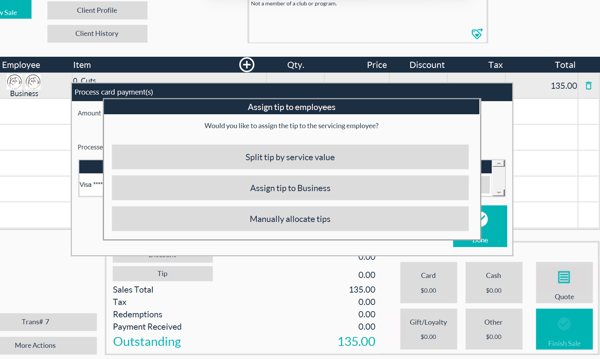
-
This is how the Tip shows in the history of the transactions
