
Before you start, log into the Shortcuts console, select the Site Settings tile. Scroll down until you see Payment provider and ensure Enabled is ticked on for ShortcutsPay terminals.

- EFT Card
- Visa
- Mastercard
- Debit Card (you may have changed this to Eftpos in your system)
- Amex (if you accept this payment type).
Note: these are the only payment types that the integration supports.
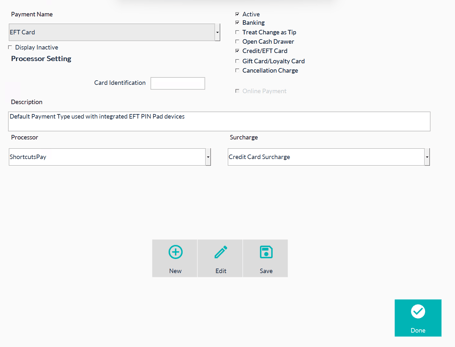
- Select the relevant payment type and ensure it is active, tick on Banking and Credit/EFT Card.
- ** Only do this step for the EFT Card Payment type: select ShortcutsPay as the payment processor.
- Click Done to save the settings.
- Open Shortcuts Fusion.
- Go to Setup → Configuration → Payment Processor.
- Click Activate ShortcutsPay. ShortcutsPay will now be displayed as the Processor.
- Click Pair Device.
- Enter the Registration Code displayed on the terminal, then click Done.
- A confirmation message will appear on screen that you ShortcutsPay terminal has been paired. Click Done.
Once your terminal has been successfully paired, it will automatically begin downloading and applying any required software updates before it is ready to use. You don't need to do anything. These updates should automatically apply. It usually takes approximately 15 - 20 minutes for these updates to start and complete. This can vary depending on your WiFi network performance.
Printing Merchant Payment Reciept (must have a receipt printer connected to Shortcuts)
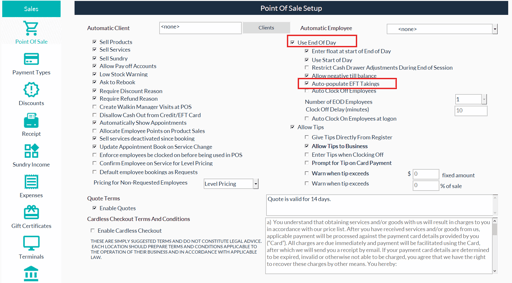
If you are using End of Day, you will need to turn of auto populate EFT Takings
To do this, click Setup, Configuration, Point Of Sale.
- Pass on surcharges to your clients to cover merchant fees
- How to enable Tipping on your ShortcutsPay terminal
- Customise your ShortcutsPay terminal splash screen