
NOTE!!! We recommend either having an alternative method to take electronic payments while transitioning to ShortcutsPay, or plan in your transition to occur outside of opening hours. On average this process takes 15 - 30 minutes to fully complete before you can start using the terminal to take payments. However, sometimes it can be longer depending on your WiFi network performance.
Before you start, log into the Shortcuts console, select the Site Settings tile. Scroll down until you see Payment provider and ensure Enabled is ticked on for ShortcutsPay terminals.

Step 1: Setup Shortcuts Pay in Fusion
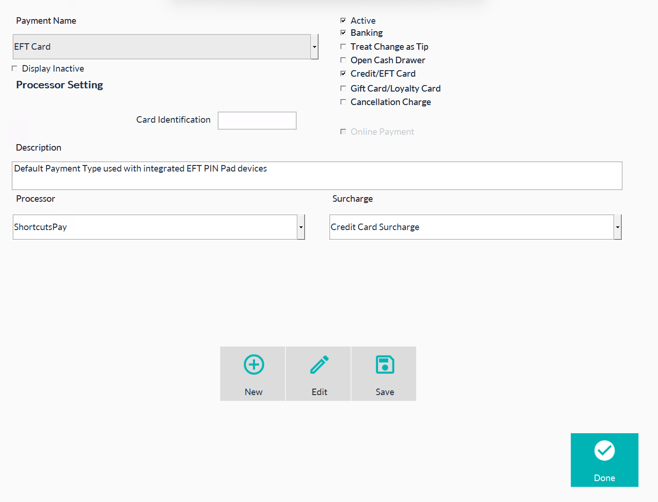
Change the setup of the required payment types so they can be used with your integrated terminal:
- EFT Card
- Visa
- Mastercard
- Debit Card (you may have changed this to Eftpos in your system, you must rename it to Debit Card)
- Amex (if you accept this payment type).
To do this, click on Set up -> Configuration -> Payment Types.
Find each of the above payment types by clicking on the drop down box under Payment Name.
- Select the relevant payment type and ensure
- The Active tickbox is ticked on
- The Banking tickbox is ticked on
- The Credit/EFT Card is ticked on.
- ** Only do this step for EFT Card: select the dropdown box for Processor and select ShortcutsPay .
- Click Save.
- Select the next Payment type from the Payment Name dropdown list and follow the steps above.
- Once you have finished all of the above payment types click Done to exit the screen.
Step 2. Pair your terminal/s
Note: You can only Pair one ShortcutsPay terminal to each computer running Shortcuts. Example: If you have 1 computer with Shortcuts Fusion installed in your business, you only need 1 terminal. If you have 2 computers with Shortcuts Fusion installed in your business, you will need 2 ShortcutsPay terminals if you want to take payments at both computers.
When your ShortcutsPay terminal arrives, remove it from the box, turn it on, and connect it to your Wi-Fi network. Make sure your ShortcutsPay terminal is fully charged or connect to the power at the time of setup.
- Open Shortcuts.
- Click Setup → Configuration → Payment Processor.
- Click Activate ShortcutsPay. ShortcutsPay will now be displayed as the Processor.
Note: If the Activate ShortcutsPay button is not visible, ShortcutsPay may already be active. You can confirm this by checking the Processor drop-down list at the top of the screen and ensuring ShortcutsPay is selected.
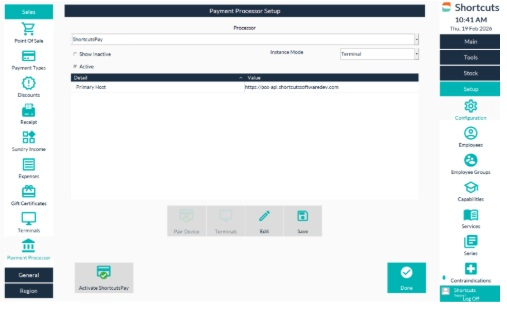
- Click Pair Device.
- Enter the Registration Code displayed on the terminal, then click Done.
Note: If the terminal is not displaying a registration code please call our support line to receive the admin pin to generate a new code.
- A confirmation message will appear on screen that you ShortcutsPay terminal has been paired. Click Done.
NOTE!!! Once your terminal has been successfully paired, it will automatically begin downloading and applying any required software updates before it is ready to use. You don't need to do anything. These updates should automatically apply. It usually takes approximately 15 - 20 minutes for these updates to start and complete. This can vary depending on your WiFi network performance.
Printing Merchant Payment Reciept (must have a receipt printer connected to Shortcuts)
In addition to printing a receipt from Shortcuts, you can opt to also print out a merchant copy of the transaction. As the ShortcutsPay terminals don't have receipt printing ability, you can opt to print a merchant receipt via a receipt printer connected to Shortcuts. This will print in addition to any Shortcuts receipts that you print out for clients. If you would like to print a merchant receipt, please ensure the setting in th Print Merchant Receipt input field has a value of 1 -> then click Done.
If you do not want to print merchant receipt, change the value in the Print Merchant Receipt field to 0 -> then Click Done.
If you are using End of Day, you will need to turn of auto populate EFT Takings
To do this, click Setup, Configuration, Point Of Sale.
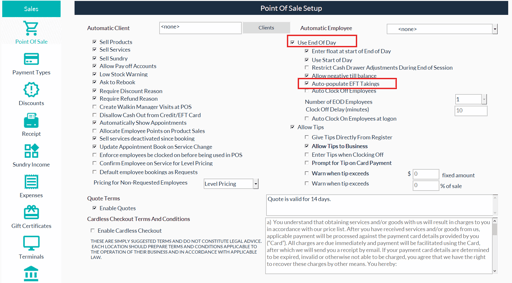
When you do end-of-day the EFT takings will automatically appear in right payment types fields so there is no need for EFT terminal report at the time of settling the till.
Your terminal will automatically reconcile over night, by auto populating the EFT takings this will streamline the end of day process.
NOTE!!! Optional Setup: