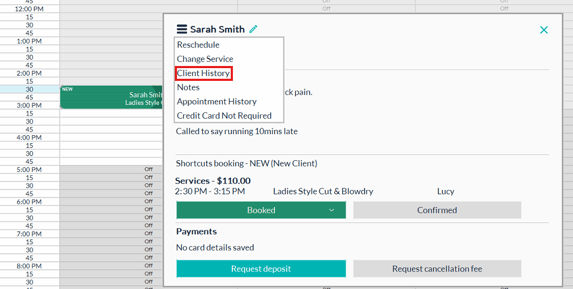
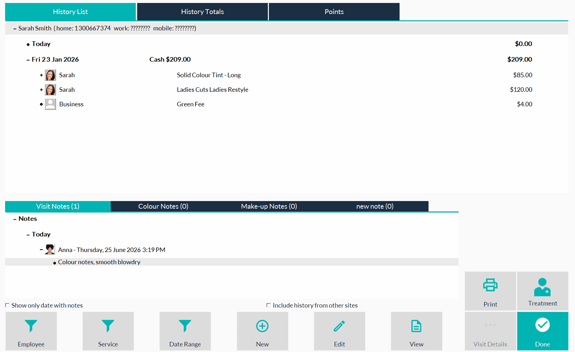
Key Features of the Appointment Touch Tip
The appointment touch tip provides a quick and easy way to manage appointments and client details.
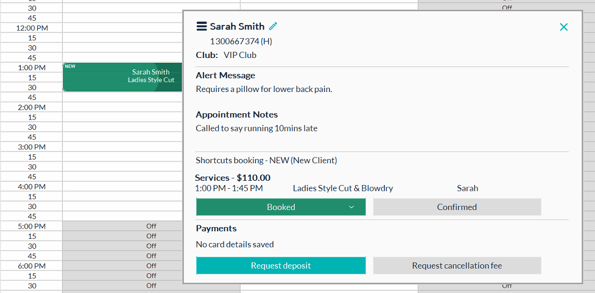
Access Appointment Details: When you select an appointment, the touch tip opens, showing an overview of the appointment.
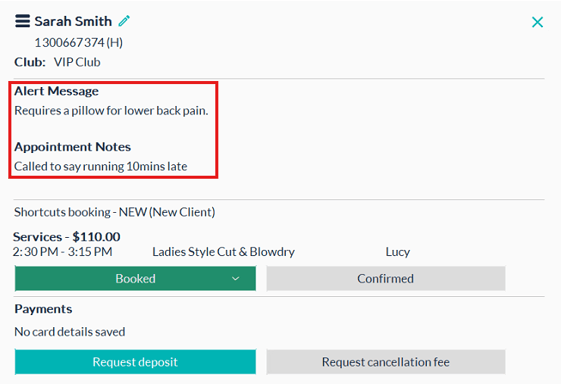
Notes/ Alerts can be viewed from this screen edit via client profile.
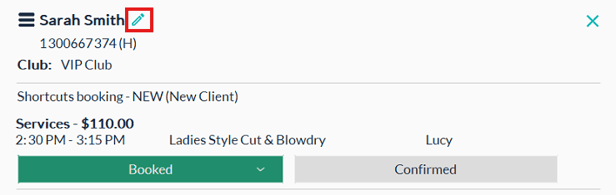
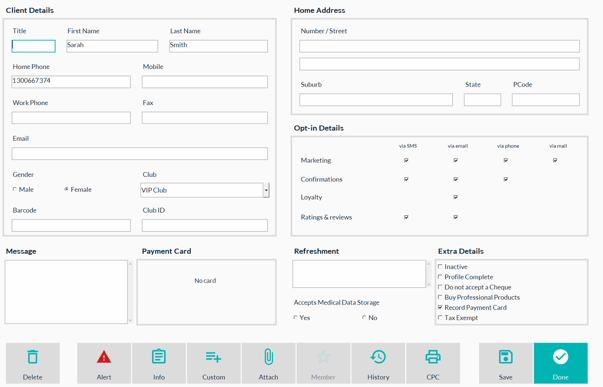
How to edit clients profile
- View Customer Information: Clicking on the client’s name allows you to view and edit their details.
How to view alert and appointment notes
View Alert and Appointment Notes
- Located under Club
Understanding Appointment Status
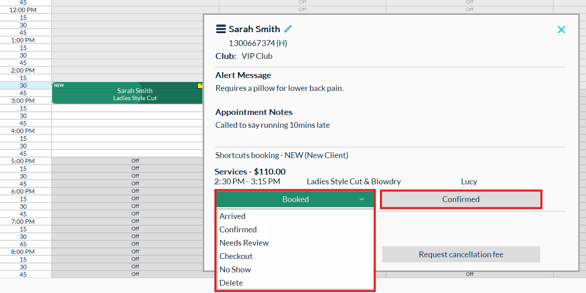
- Update Appointment Status: You can update the appointment status directly from the touch tip by clicking booked.
- Predicted Status: The touch tip displays the current and next predicted status for the selected appointment. For example Booked and Confirmed
- Arrived button is disabled until day of appointment
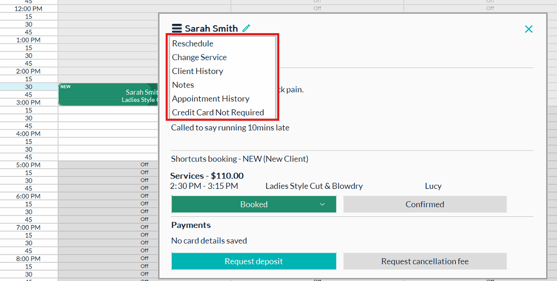
Touch Tip Menu
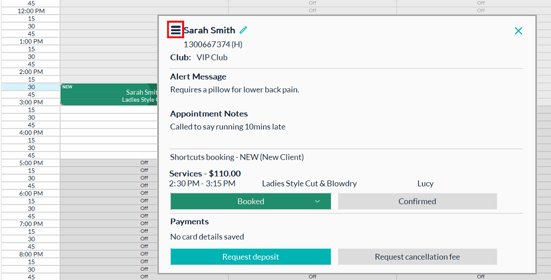
- More actions menu is located on the top left corner (Hamburger Icon)
These include: Rescheduling, Customer History , notes and Appointment history.
How to View Customer History
- Select the appointment, click on the menu icon and from the drop down choose Customer History to view past interactions and details.
- When finished, click the Appointments icon to return to the appointment book