
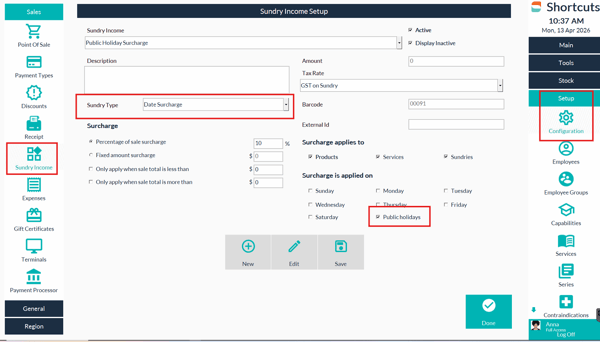
Set up the sundry income
- Setup > Configuration
- Sundry Income
- Select "New" to add a new Sundry.
- Name the surcharge and choose the sundry type Date Surcharge.
- add the amount and choose what the surcharge is applied to.
- Select the public holiday applied option.
- Save and exit out of shortcuts.
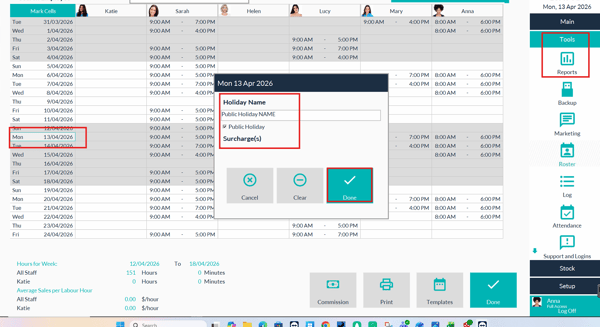
Choose the dates in the roster the holiday surcharge applies in the Roster
-
Tools > Roster
-
Select the public holiday day.
-
Name the Holiday.
-
Check the Public Holiday tick box.
- Done.
The surcharge will now apply on the day in Point of Sale.